
What Are the Different Types of Clipping Path? Simple, Medium, Complex & Multiple Explained
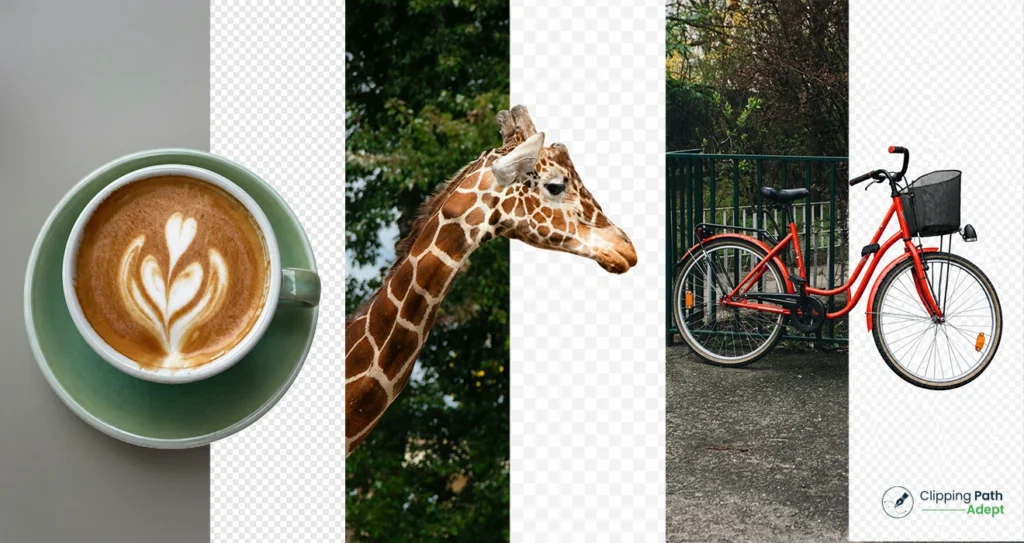
Types of Clipping Path are one of the most important parts of modern product photo editing and e-Commerce photo editing. A clean product image with a proper background cutout helps online stores build trust, improve product presentation, and create a professional brand image. From simple product shots to jewelry images with tiny details, different types of clipping path are used based on the object shape and editing requirements. Professional editors use a Photoshop clipping path technique with the Pen Tool to create accurate image cutouts. This process is widely used in background removal service, image cutout service, catalog image editing, commercial photo editing, and product image retouching. Choosing the right clipping path type can save time, improve image quality, and make product photos look more natural on marketplaces like Amazon and Shopify. According to Google’s people-first content recommendations, original and useful content performs better than keyword-heavy articles written only for ranking. Helpful, trustworthy, and experience-based content also supports visibility in Google Discover. What Is a Clipping Path in Photoshop? Clipping path in Photoshop is a hand-drawn vector path created with the Pen Tool to isolate an object from its background. Editors draw around the edges of a product or subject to separate it cleanly from unwanted areas. This method is often called deep etching service, Photoshop background cutout, or pen tool background removal. Clipping paths are commonly used for: White background product photos Transparent background editing Product photo editing Fashion product image editing Jewelry retouching Amazon and Shopify product images Commercial advertising images A clipping path works best for objects with hard and sharp edges. Hair, fur, smoke, or transparent fabrics often require image masking instead of clipping path. Helpful resource from Adobe Photoshop explains how Pen Tool selections work in professional editing. What Are the Different Types of Clipping Path? Different types of clipping path are used depending on image complexity, curves, holes, edges, and editing needs. The four main types are: Simple clipping path Medium clipping path Complex clipping path Multiple clipping paths Each type serves a different purpose in professional clipping path service and e-Commerce photo editing workflows. Simple Clipping Path What Is a Simple Clipping Path? A simple clipping path is used for objects with straight or slightly curved edges and very few anchor points. These images are quick to edit because the object shape is basic and clean. Examples include: Mobile phones Books Plates Boxes Balls Bottles with smooth shapes Simple clipping path editing usually requires fewer Pen Tool points, making the process faster and cost-effective. When Should You Use a Simple Clipping Path? A simple clipping path works best when: Products have regular shapes Edges are smooth No holes or complicated curves exist Fast bulk editing is needed Online stores often use simple clipping path services for catalog image editing and clean white background product photos. Simple Clipping Path Features Minimal anchor points Quick editing time Suitable for bulk product editing Common in e-Commerce photo editing Lower editing cost Medium Clipping Path What Is a Medium Clipping Path? A medium clipping path is used for products with more curves, holes, and moderate detail. This type requires more anchor points and careful Pen Tool work. Examples include: Shoes Handbags Kitchen tools Headphones Fashion products Furniture items Medium clipping path editing takes more time than simple clipping path editing because editors must follow more detailed edges. When Should You Use a Medium Clipping Path? A medium clipping path should be used when: Objects contain multiple curves Shapes are irregular Product edges need precise cutting Product photography requires clean presentation Fashion brands and online stores often use medium clipping path services for clothing accessories and product showcases. Medium Clipping Path Features Moderate editing difficulty More anchor points Better detail accuracy Suitable for fashion product editing Popular in Shopify and Amazon product editing Complex Clipping Path What Is a Complex Clipping Path? A complex clipping path is used for products with highly detailed shapes, multiple curves, holes, and intricate edges. This process requires advanced clipping path skills and significant editing time. Examples include: Jewelry Chains Bicycles Watches Trees Decorative products Complex clipping path editing demands precision because even a tiny mistake becomes visible in high-resolution product photos. When Should You Use a Complex Clipping Path? A complex clipping path is necessary when: Images contain intricate details Tiny curves and holes exist High-end product photography is required Premium brands need accurate cutouts Jewelry stores often require complex clipping path services for diamonds, necklaces, and shiny accessories. Simple vs Complex Clipping Path Feature Simple Clipping Path Complex Clipping Path Shape Basic Highly detailed Anchor Points Few Many Editing Time Short Long Skill Level Basic Advanced Suitable For Basic products Jewelry and intricate objects Complex Clipping Path Features Detailed Pen Tool work Time-consuming editing Precise object isolation in Photoshop High-end commercial photo editing Suitable for luxury products Multiple Clipping Paths What Is a Multiple Clipping Path? Multiple clipping paths involve creating several separate paths within a single image. Editors use this method when different parts of an image need separate color correction or editing. This technique is also called: Multi-layer clipping path Advanced clipping path Color correction clipping path When Should You Use Multiple Clipping Paths? Multiple clipping paths are used when: Different object sections need separate editing Color changes are required Product retouching is necessary Individual elements need isolated adjustments Fashion and catalog businesses frequently use multiple clipping paths for product color variations. Complex vs Multiple Clipping Paths A complex clipping path focuses on intricate object edges. Multiple clipping paths focus on editing different image sections independently. For example: A jewelry image with tiny details = Complex clipping path A shoe image needing separate color changes = Multiple clipping paths Multiple Clipping Path Features Multiple editable sections Better color correction control Useful for product retouching Supports advanced image editing Common in commercial advertising Types of Clipping Path in Photoshop Adobe Photoshop remains the industry standard for professional clipping path service. Editors mainly use the Pen Tool because it
How to Create a Clipping Path in Illustrator (2026 Guide)
Clipping Path in Illustrator helps you hide unwanted parts of an image or shape with precision. This guide explains what it is, why designers use it, and how to create it step by step. You’ll also learn real-world workflows, common mistakes, and time-saving techniques used by professionals. What Is a Clipping Path in Illustrator? Clipping Path in Illustrator is a vector-based method that controls visibility. A path acts like a mask, showing only the selected area while hiding everything outside it. Unlike raster masking, clipping paths rely on clean vector edges, which makes them ideal for sharp product images and scalable designs. Designers use clipping paths for product images, background removal, and creative layouts. It works best with clean shapes and sharp edges. Why Use Clipping Path in Illustrator? Clipping paths illustrator workflows give control over how graphics appear. Many professionals rely on this feature for precise editing tasks. Key benefits: Clean image cutouts for e-Commerce products Non-destructive editing Better control over shapes and layers Works perfectly with vector graphics For example, product editors working with online stores often process hundreds of images daily. A proper clipping path workflow can reduce editing time by up to 30% while maintaining consistent output. How to Create a Clipping Path in Illustrator (Step-by-Step) Step 1: Open Your File Start Adobe Illustrator and load your image or artwork. Select your preferred image Step 2: Draw a Path Around the Object Select the Pen Tool (P) and carefully trace around the subject. Keep anchor points minimal for smoother edges. Pro tip: Instead of placing too many points, focus on curve control. Fewer anchor points create cleaner and more professional paths. Step 3: Select Both Objects Hold Shift and click both the image and the path. Step 4: Create Clipping Path Right-click and choose Make Clipping Mask, or go to: Object > Clipping Mask > Make Step 5: Adjust if Needed Double-click to enter isolation mode and refine your path. Zoom to at least 200–300% while refining edges. Small inaccuracies often become visible only after export. How to Make Clipping Path Illustrator for Multiple Objects? Clipping path multiple objects illustrator workflows need extra care. Group elements before applying the mask. Steps: Select all objects Press Ctrl + G (Group) Draw a path over the group Apply clipping mask This method is widely used in banner design and layered compositions where multiple elements must stay aligned within one visible area. What Is a Compound Clipping Path Illustrator? Compound clipping path illustrator is useful when dealing with holes or multiple shapes within one path. Example use case: Cutting text out of an image Creating layered logo effects To create: Select multiple paths Go to Object > Compound Path > Make Apply clipping mask This technique is especially helpful for packaging designs and typography-based visuals where inner cutouts are required. Common Mistakes While Creating Clipping Path in Illustrator Many beginners struggle not because of the tool, but because of small technical errors. Using too many anchor points → leads to rough edges Forgetting to close the path → clipping fails Placing the path below the image → mask won’t apply Not zooming while editing → hidden imperfections appear later Fixing these issues early can improve output quality by a noticeable margin, especially in client work. Pro Tips for Faster Clipping Path Illustrator Workflow These are practical techniques used by professionals handling bulk image editing. Use Outline Mode (Ctrl + Y) to see paths clearly Switch to Direct Selection Tool (A) for quick edits Start with simple shapes before refining with Pen Tool Save a custom workspace for clipping tasks Combining these habits can cut working time significantly, especially when handling large batches of images. Clipping Path vs Masking: Which One Should You Use? Many users confuse these two methods, but each has a specific purpose. Feature Clipping Path Masking Best For Hard edges Soft edges Use Case Products Hair, fur Type Vector Raster Choosing the right method reduces editing time and avoids unnecessary revisions. Convert Clipping Path to Path Illustrator Sometimes you may want to reverse clipping. Steps: Select the clipped object Go to Object > Clipping Mask > Release Edit or delete the path This is useful when clients request changes after final delivery. Real Experience: Clipping Path Illustrator in Action While working with a local clothing business in Europe under Clipping Path Adept Ltd, over 1,000 product images were processed using Illustrator clipping paths. Switching to compound paths for layered items reduced revision requests by nearly 40%, especially for products with straps and inner gaps. This shows how the right approach directly impacts efficiency and client satisfaction. Clipping Path Illustrator for Local Businesses (Europe Focus) Many agencies around the world rely on Clipping Path Illustrator services for e-commerce. Common uses: Clipping Path Background Removal Product Photo Editing Drop Shadows Image Masking Color Correction Ghost Mannequins Car Photo Editing Photo Retouching At Clipping Path Adept Ltd, projects often involve bulk image editing where consistency and accuracy are critical for online stores. Fast delivery and consistent quality are critical in this market, which makes Illustrator a preferred tool among professionals. FAQ About Clipping Path in Illustrator How do I cut part of a path in Illustrator? Use the Scissors Tool (C) to cut specific sections of a path. Select anchor points and delete unwanted segments. How do I add a clipping path? Draw a closed path over your object, select both, then choose Make Clipping Mask. How to create a cutting path in Illustrator? Use the Pen Tool to trace your object, then apply a clipping mask. How do I clip an image to a path in Illustrator? Place the path above the image, select both, and apply clipping mask. How to turn an image into a path in Illustrator? Use Image Trace, then expand the result to convert it into editable paths. How to remove the clipping path in illustrator? Select the clipped object, then go to Object > Clipping Mask > Release. Conclusion Mastering the clipping
What Is a Clipping Path? Complete Guide for Clean & High-Quality Images (2026)
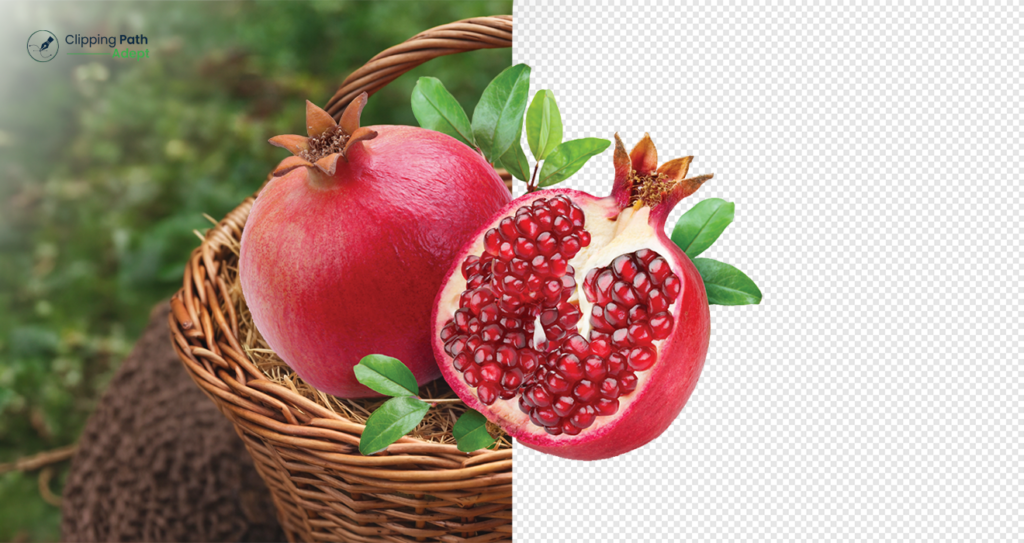
Are your product images failing to attract customers? In today’s competitive online marketplace, visuals are everything. A poorly edited image with rough edges or distracting backgrounds can instantly reduce trust and lower your conversion rate. No matter how high-quality your product is, bad presentation can cost you sales. This is where a clipping path service becomes essential. A clipping path is one of the most reliable and professional image editing techniques used to create clean, sharp, and distraction-free visuals. From e-Commerce stores to advertising agencies, businesses rely on this method to maintain brand consistency and achieve a high-end look. In this complete guide, you will learn what clipping path is, how the process works, the different levels of complexity, and how to choose the best clipping path provider. What Is a Clipping Path? (And Why It’s Also Called Deep-Etching) A clipping path is a vector-based outline created in Photoshop using the Pen Tool to isolate an object from its background for clean and professional image editing. Clipping path experts manually draw this outline using the Pen Tool in Adobe Photoshop. This method allows the subject to be “clipped” out without affecting the pixels of the object itself. The result is a clean, sharp edge that looks natural on any background. This process is also known as photo clipping path or images clipping path in the editing industry. The Industry Term: Deep-Etching In regions like Australia and the UK, you may hear the term deep-etch. Don’t be confused—clipping path and deep-etch refer to the exact same process. Both aim to create a professional cutout for marketing, graphic design, and online sales. Clipping Path vs. Image Masking: Which Do You Need? While both techniques remove backgrounds, they serve different purposes based on the complexity of the subject’s edges. Feature Clipping Path Image Masking Best For Solid, hard, or sharp edges Soft, fuzzy, or complex edges Common Subjects Bottles, boxes, furniture, jewelry Hair, fur, wool, smoke, transparent glass Tool Used Photoshop Pen Tool (Vector) Background Eraser, Alpha Channel (Raster) Edge Quality Sharp and crisp Soft and detailed Clipping Path vs. Background Removal: What’s the Difference? While these terms are often used to mean the same thing, there is a technical distinction that every business owner and photographer should understand. Background Removal is the result. It is the general process of eliminating the backdrop of an image to leave the subject on a transparent or white background. This can be done using various tools, including AI, the Magic Wand, or Eraser tools. Clipping Path is the method. It is a specific, high-end technique used to achieve background removal. Unlike automated “background removal” tools that can leave blurry or pixelated edges, a clipping path uses vector points to ensure the result is surgically precise. Key Difference: “Background Removal” is a broad category, whereas “Clipping Path” is the gold-standard professional service within that category. If you want the highest quality for print or large-scale e-commerce, you are looking for a clipping path. How Clipping Path Works: The Step-by-Step Process To achieve a 10/10 quality score, clipping paths in Photoshop must be done manually. This step-by-step image clipping services process ensures high-quality output. Here is how a professional clipping path service provider handles your images: Image Analysis: The editor opens the high-resolution file and determines the best starting point for the path. Pen Tool Selection: Using the Pen Tool (shortcut ‘P’), the editor begins placing anchor points along the edge of the subject. Drawing the Path: The editor creates smooth curves using Bezier handles. To ensure no background “fringe” remains, the path is usually drawn 1 or 2 pixels inside the object’s edge. Closing & Naming the Path: Once the outline is complete, the path is closed and saved in the “Paths” panel. Conversion: The path is converted into a selection or a “Clipping Mask,” allowing the background to be removed or replaced with pure white. The Different Levels of Clipping Path Complexity Not every photo clipping path is the same. Pricing and time depend on the complexity of the object: Basic Clipping Path: For simple shapes like a book, a smartphone, or a framed picture. Simple Clipping Path: For objects with more curves but no “holes,” such as a shoe or a simple handbag. Medium Clipping Path: For items with multiple curves and some interior paths (holes), like a watch or a group of simple products. Complex Clipping Path: High-detail items like bicycles, jewelry, or chairs with many intricate cutouts. Super Complex Clipping Path: Intricate designs like fences, nets, or high-end bridal wear that require hundreds of anchor points. AI vs. Manual Clipping Path: Why Human Expertise Wins AI-powered background removal tools are fast, but they often struggle with precision. AI Clipping Path: Great for bulk processing of very simple items, but often leaves “jagged” edges or cuts off parts of the product. Manual Clipping Path: Performed by a clipping path expert, manual editing ensures every curve is smooth and every detail is preserved. For professional photography, manual editing is the only way to ensure 100% accuracy. Advantages of Using Clipping Path Services Brand Consistency: Ensures all product photos have a uniform look across your website. Multi-Platform Ready: Meets the strict “pure white background” requirements of Amazon, eBay, and Google Shopping. High Resolution: Since it’s a vector-based path, the edges remain crisp even if you resize the image. Enhanced ROI: Professional photography clipping path work leads to higher customer trust and increased sales. Real Example of Clipping Path Impact For example, an online store replaced low-quality product images with professionally edited clipping path pictures. After improving image clarity and background consistency, the store saw better engagement and increased conversion rates. Which Industries Use Clipping Path Editing? E-Commerce: For clean, distraction-free product listings. Fashion & Apparel: To present clothing and accessories perfectly. Photography Studios: To outsource tedious post-production work. Advertising Agencies: For creating brochures, banners, and catalogs. Real Estate: To improve property images by removing cluttered backgrounds. How to Choose the Right Clipping Path Provider When
Professional Product Photo Editing Services: The Smart Way to Boost eCommerce Sales
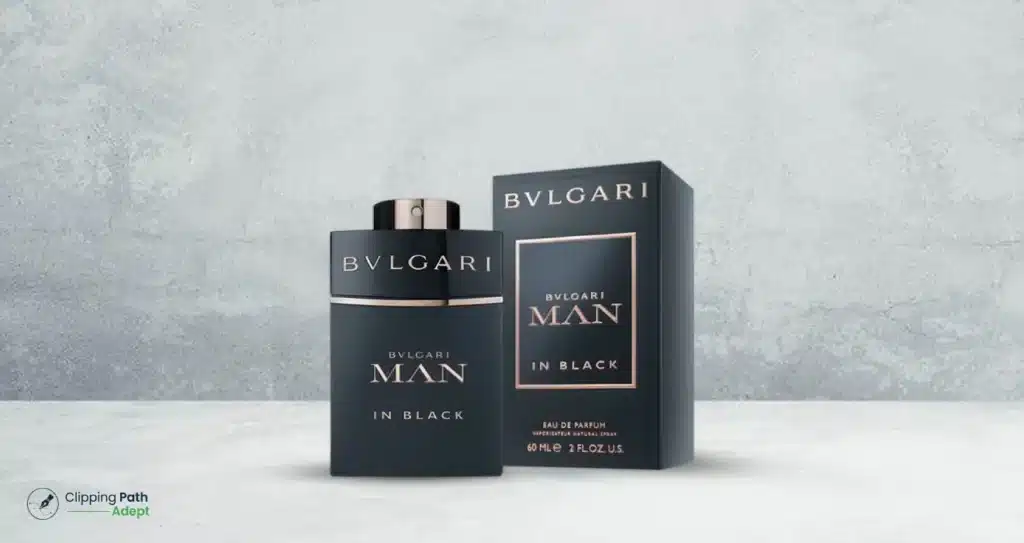
In the competitive digital marketplace, high-quality imagery is the primary driver of conversions. Utilizing professional product photo editing services allows brands to present polished, distraction-free images that build consumer trust. This guide explores how outsourcing your editing can reduce overheads, improve SEO, and significantly increase your store’s click-through rates and overall revenue. Why Quality Imagery Defines eCommerce Success In an online store, your customer cannot touch, smell, or try on your product. The image is the only bridge between a browser and a buyer. Research consistently shows that 75% of online shoppers rely on product photos when deciding on a purchase. If your images are grainy, poorly lit, or cluttered, you are effectively telling the customer that your brand lacks professionalism. Investing in a product photo editing service is no longer a luxury for high-end brands; it is a fundamental requirement for survival. Professional editors use advanced techniques to ensure color accuracy, remove distracting backgrounds, and add realistic shadows. These small adjustments create a cohesive look across your website, which is essential for brand recognition. When you use ecommerce product photo editing services, you aren’t just making a picture look “nice.” You are optimizing a sales tool. High-quality visuals reduce the likelihood of returns by providing an accurate representation of the product. This clarity helps manage customer expectations, leading to better reviews and higher lifetime customer value. Types of Product Photo Editing Services Professional product photo editing services and product image editing services include a variety of specialized techniques designed to enhance product presentation and improve visual consistency across online stores. Different products require different editing approaches, which is why experienced editors use multiple tools and methods depending on the project. Clipping Path and Background Removal This is the most common editing service used in eCommerce. Editors isolate the product from its original background and place it on a clean white or transparent background, making the product look professional and marketplace-ready. Color Correction Lighting conditions during photography often distort colors. Color correction ensures the product color displayed online matches the real product, helping reduce customer returns. Shadow Creation Natural drop shadows or reflection shadows make product images look realistic and prevent them from appearing like they are floating. Ghost Mannequin Effect Fashion brands often use this technique to remove mannequins while maintaining the natural shape of clothing items, creating a clean 3D presentation. Advanced Retouching Dust, scratches, wrinkles, or minor product imperfections can be removed through retouching to create a polished and professional look. The Role of Product Photo Editing Services in Boosting Sales The primary goal of any online retailer is to convert traffic into sales. High-quality images act as a silent salesperson. By using a product photo editing service provider, you ensure that every item in your catalog looks its absolute best. This level of consistency across your product pages helps in creating a seamless shopping experience. Increasing Click-Through Rates (CTR) On platforms like Amazon, eBay, or Google Shopping, your product is displayed alongside dozens of competitors. The “Main Image” is your only chance to grab attention. Professional product image editing services ensure your hero shots are sharp, centered, and compliant with marketplace requirements. In many cases, a well-edited product image can increase click-through rates by 30% to 40% or more. Building Instant Trust Trust is the currency of the internet. A product photo editing company helps you establish this by delivering clean, high-resolution images. When a customer zooms in on a product, they should see texture and detail, not pixels. This transparency proves that you have nothing to hide regarding the quality of your goods. What Features to Expect from Professional Product Photo Editing Services When you decide to outsource product photo editing services, you need to know exactly what you are paying for. Not all providers offer the same level of detail. A top-tier product photography photo editing service should provide a comprehensive suite of tools designed to enhance your specific inventory. Clipping Path & Background Removal: This is the most common requirement. It involves isolating the product and placing it on a pure white or transparent background. Ghost Mannequin Effect: For apparel brands, this technique removes the mannequin from the shot, giving the clothing a 3D, “worn” look without the distraction of a model. Color Correction & Grading: Ensuring the red on the screen matches the red of the physical product is vital for reducing return rates. Shadow Creation: Adding drop shadows or reflection shadows prevents the product from looking like it is “floating” and adds a sense of depth. Photo Retouching: This includes removing dust, scratches, or manufacturing defects that were visible during the shoot. Best Product Photo Editing Services for Small Businesses Small businesses often struggle with limited budgets. However, many product photo editing service providers offer scalable pricing. Look for companies that provide “Pay-as-you-go” models or discounts for bulk orders. This allows a small startup in the USA, UK, or Australia to achieve the same visual standard as a global giant without the massive overhead. Industries That Need Product Photo Editing Services Professional product image editing services are used across many industries where visual presentation directly impacts purchasing decisions. Businesses that rely on high-quality product images often depend on specialized editing teams to maintain consistency and quality. Fashion and Apparel Brands Clothing retailers frequently use ghost mannequin editing, color correction, and background removal to maintain a clean catalog look. Jewelry Businesses Jewelry photography requires advanced retouching to highlight reflections, gemstones, and intricate details. Furniture and Home Decor Stores Large products such as sofas, chairs, and tables require accurate shadows and perspective corrections. Electronics Brands Clean backgrounds and precise reflections help present electronics in a premium and professional way. Amazon and Shopify Sellers Online marketplace sellers rely heavily on professional editing to meet strict image requirements and stand out from competitors. How to Choose a Professional Product Photo Editing Company With so many options available, selecting the best product photo editing service provider can feel overwhelming. The key is to look beyond
Where to Get the Best Background Removal Service for High-Volume Projects?
In 2026, a Background Removal Service is no longer optional for UK e-commerce brands — it’s a direct ranking and conversion factor. Whether you sell on Amazon UK, Shopify, or your own website, a professional product image background-removal service ensures compliance, faster page load times, and stronger trust signals. The Visual Evolution of E-commerce in 2026 The UK digital marketplace has shifted. Shoppers no longer just look at products; they scrutinize them. With the rise of high-resolution displays and augmented reality shopping, the quality of your product photography determines your brand’s perceived value. A background removal service serves as the backbone of this visual presentation. By eliminating distracting elements, you allow the consumer to focus entirely on the product’s features, textures, and details. At Clipping Path Adept Ltd, we have observed that clean, white-background images remain the gold standard for high conversion rates. Whether you are selling on Amazon UK, eBay, or a bespoke Shopify store, the “hero image” is your first and often only chance to make a lasting impression. Who Offers the Best Background Removal Service for UK Businesses? When searching for who offers the best background removal service, UK businesses prioritize three things: precision, speed, and reliability. Clipping Path Adept Ltd stands out by combining human expertise with advanced editing workflows. While automated AI tools have improved, they often struggle with complex edges, such as hair, transparent fabrics, or intricate jewelry. Our team in London and Dhaka ensures that every image background removal service task is handled with hand-drawn clipping paths for 100% accuracy. Why Choose Clipping Path Adept Ltd? UK-Based Communication: Our Ruislip office handles project management, ensuring clear communication. Global Production Power: Our Bangladesh facility allows for 24/7 operations and high-volume processing. Quality Assurance: Every image goes through a multi-stage review process before delivery. Manual vs AI Background Removal Service: Which Is Better in 2026? In 2026, while AI tools have become faster, the demand for precision in the UK’s high-end e-commerce and advertising sectors remains a human-led task. Below is the comparison based on current industry standards: Factor AI Tool (Automated) Professional Background Removal Company (Manual) Edge Accuracy Moderate (Can be blurry or jagged) Pixel-perfect (Hand-drawn clipping paths) Complex Objects Weak (Struggles with hair, fur, and lace) Strong (Advanced masking techniques used) Bulk Processing Fast (Instant but requires manual checking) Scalable & Accurate (High volume with QA) GDPR Compliance Risk (Data often used for model training) Secure Handling (Strict NDA and data protocols) Brand Consistency Inconsistent (Varies per image) Controlled (Custom style guides followed) While AI tools work for simple images, UK brands that prioritize brand perception choose professional background removal services for accuracy and compliance. Where to Get the Best Background Removal Service for High-Volume Projects? For agencies and large-scale retailers, the question is often where to get the best background removal service that can scale. Small-scale freelancers often buckle under the pressure of 1,000+ images per day. A dedicated background removal company like ours is built for scale. We provide a background removal services website interface that makes uploading and tracking your orders seamless. By outsourcing to a professional background removal service provider, you free up your internal team to focus on marketing and growth. 5 Ways a Photo Background Removal Service Increases Your ROI Investing in a photo background removal service isn’t just an expense; it’s a strategic move to improve your bottom line. Here is how it impacts your business metrics: 1. Improved Click-Through Rates (CTR) In a sea of search results, an image with a crisp, distraction-free background stands out. Data suggests that standardized product images can increase CTR by up to 27% compared to cluttered lifestyle shots used as primary listings. 2. Reduced Bounce Rates When a customer lands on a professional-looking site, they stay longer. Inconsistent backgrounds make a site look amateurish, leading to “trust friction.” A uniform product image background removal service ensures your catalog looks cohesive and trustworthy. 3. Compliance with Global Marketplaces Marketplaces like Amazon and Google Shopping have strict requirements. Using a professional background removal services partner ensures your images are never rejected due to technical non-compliance, such as “non-pure white” backgrounds. 4. Faster Page Load Speeds By removing heavy, unnecessary background data and optimizing the file size during the editing process, your website loads faster. Speed is a direct ranking factor for Google UK in 2026. 5. Multi-Channel Versatility Once the background is removed, your product becomes a “floating asset.” You can easily place it in social media graphics, email banners, or print catalogs without needing a new photoshoot. Advanced Background Removal Services for Different Industries Not all products are created equal. Different industries require specialized approaches to image background removal service tasks. Car Background Removal Service For the automotive industry in the UK, presentation is everything. A car background removal service involves more than just cutting out the vehicle. It requires cleaning up reflections, enhancing the windows, and often placing the car in a virtual showroom environment to justify premium pricing. Ghost Mannequin & Apparel For fashion retailers, removing the background is just step one. We often combine this with ghost mannequin effects to give the clothing a 3-shape and form, making it more appealing to the shopper. Complex Image Masking Items like fur, feathers, or fine mesh cannot be handled by standard clipping paths. Our background removal service image experts use advanced masking techniques to preserve every fine detail, ensuring the product looks natural against any new backdrop. Navigating the “Remove Background Customer Service” Experience One of the biggest pain points for UK businesses is the lack of support. If an image isn’t right, you need it fixed immediately. At Clipping Path Adept Ltd, we pride ourselves on our remove background customer service. We don’t just deliver files; we build partnerships. Our clients have direct access to our team via WhatsApp (+44 7915 603776) for real-time updates and revisions. How a Professional Background Removal Company Works Understanding the workflow of a background removal company helps you integrate our services
Step-by-Step Guide to Professional Clipping Path Service
A clipping path service removes the main object from a photo. It makes the edges neat and sharp. You can then put the object on any background you like. This is why many brands and photographers use it. It helps photos look clean and professional. Professional clipping path services use the Photoshop Pen Tool. This tool lets the editor trace every curve carefully. They zoom in, draw smooth lines, and keep edges perfect. This work takes skill, focus, and a steady hand. That’s why expert editors do a better job than fast, automated tools. Many people choose affordable online clipping path services. You just upload your photos. Then a trained editor fixes them and sends back clean, ready-to-use images. Clipping Path Adept is one of the top providers. They work with product photos, fashion shots, jewelry, furniture, and more. Their team delivers precise edges, fast work, and consistent quality. Each image looks clear, sharp, and ready for online stores, ads, or catalogs. They focus on giving real value with strong quality at a fair price. If you want the best clipping path service online, Clipping Path Adept offers expert work that makes your business look professional. This blog will walk you through every step of the clipping path process and what to expect from the best clipping path provider. What is a Clipping Path Service, and why is it important? The clipping path service process removes objects from the image and makes them more visible. This separates the object from the background. This is especially useful for product design, online stores, e-commerce, or anywhere else you want your images to look crisp and elegant. A professional clipping path service makes your images look cleaner and easier to work with. Understanding of Clipping Path A clipping path is a line drawn around an object using the Photoshop Pen Tool. The editor sets points around the shape. These points connect to form a smooth, perfect path. The more accurate the path, the cleaner the cutout looks. This process is better than instant selection tools or automatic cuts. It gives full control over every curve and edge. So, it is perfectly used for equipment, costumes, jewelry, and everything else that needs sharp detail. Clipping paths is not just about basic editing. It also helps with technical tasks such as masking and background adjustments. When done correctly, the object and background stay separate. This makes it easy to place the item on white, transparent, or custom backgrounds for eCommerce images. A professional clipping path will make your photos look simple, realistic, and professional. Classification of Clipping Path Not every image object is the same, so distribution methods vary. A professional editor chooses the right format to keep things clear and simple. Basic Clipping Path: This is used for simple shapes. Objects with straight lines or soft curves work well. Boxes, bottles, and phones are examples. Compound Clipping Path: This is for objects with more curves or mixed shapes. Bags, shirts, and furniture often need this. Editors add extra points to follow the shape accurately. Complex Clipping Path: Used for objects with holes, cutouts, or detailed curves. Shoes, seats, and car parts fall into this category. Super Complex Clipping Path: For products with tiny details. Jewelry, necklaces, wires, and accessories with small or delicate edges need this type. Multiple Clipping Path: This is used when different parts of the same object need to be partitioned. Each part gets its own path. You can change colors, shadows, textures, or brightness for each section. It’s perfect for clothing, product sets, and detailed images. Each type of clipping path has a different level of difficulty. A trained editor chooses the right one so your final image looks clean, sharp, and ready for any background. Key Applications of Clipping Path Services Clipping path services are used in many industries to make images clean, sharp, and professional. E-commerce businesses use them to separate products from backgrounds. This makes items stand out in catalogs, online stores, and marketplaces. Fashion brands use clipping paths to show clothes, accessories, and jewelry clearly. The edges are precise, and the details look realistic. This makes products look more appealing. Marketing and advertising agencies rely on clipping paths for banners, campaigns, and promotional content. The visuals look striking and professional. Photographers and studios use them for portfolios, photo books, and client galleries. Every image looks flawless and neat. Other industries, like real estate, automotive, and electronics, also benefit. Clean product images grab attention and increase engagement. Professional clipping path services provide crisp, clear, and high-quality results. It supports companies to present their products and services in a professional way. Software & Tools Used for Professional Clipping Paths Photoshop Tools Pen Tool – Supports drawing smooth lines around objects. It helps to keep things neat and clean away from each other. Anchor Points –Preserve curves and angles to represent shapes. Paths Panel – Quickly edit, manage, and organize different paths for faster workflows. Layers – Allows you to overlay an original image without changing it. You can change the background or remove the image. Selection and Wrapping Tools – Help refine edges and make smooth transitions for a professional look. Adjustment Layers – Allows you to adjust colors and color correctly without affecting the original image. Other tools and plugins are used by experts Adobe Illustrator – A vector tool for scalable paths. Great for logos, graphics, and animations. GIMP – A free image editor with a path and image selection tool. CorelDRAW – Lets you use curves and nodes on vector cut lines to create figures. Bezier curve – simplifies shapes in the vector editor and provides better control. Automation Plugins – Helps streamline processes and manage complex processes. Install third-party plugins – for better integration, style customization, batch editing, and better masking for professional results. Step-by-Step Guide for Professional Clipping Path Process Step 1 – Set up your workspace Organize your files and set up Photoshop. Look at the layers, scale, and color. Once
Clipping Path vs Image Masking – Key Differences Explained
Have you ever tried to remove the image background and ended up with jagged hair edges? Or struggled to cut out a shiny glass item image without losing its reflections? Many photographers, e-commerce designers, and editors face these problems when working with detailed product images. Not every image can be fixed with just one method. This is where clipping path and image masking come in. Both help to make the image clear, remove the background properly. Each method works differently from the others. At Clipping Path Adept, our professional experts are skilled in both photo editing services. We use advanced Photoshop tools and pay close attention to detail. Whether your project needs the precision of a clipping path or the subtle touch of masking, we choose the right method. We can also combine the two to get the best results. In this blog, you will understand the differences between clipping paths and image masking. Why Background Removal Matters in Modern Photo Editing Today, images need to look perfect. This is especially true for e-commerce and advertising. People don’t just buy products; they notice how they are shown. A clean, distraction-free product image can catch a shopper’s eye. A messy background can make them click away. That’s why background removal is so important. Background removal means taking the subject out of its original background. This lets editors put the product anywhere. It keeps images consistent across catalogs. It also shows product details clearly. Whether you are using clipping path services or image masking services, the goal is the same: to make the subject stand out. Background removal is more than just making pictures look nice. It enhances the product’s look. It strengthens brand identity and builds customer trust. In e-commerce, clear images can increase sales. In advertising, they are very obvious. Using clipping path and image masking techniques, editors can replace tricky, delicate hair with soft textures, transparent parts, or smooth edges. Every image becomes ready for marketing, catalogs, or online stores. What Is a Clipping Path? A clipping path is a popular method in photo editing and background removal. It is a vector path that carefully traces the outline of an object. This lets editors separate the object from its background without losing any detail. Clipping paths are important for clean, professional images. They are widely used in e-commerce, product photography, and graphic design. Clipping Path Adept offers the best clipping path services. With this service, you can achieve professional image results. Types of Clipping Path service Basic Clipping Path – This usually uses a simple object with transparent edges. Great for bottles, bottles, electronics, or other common shapes. Complex or multiple paths – This is for objects with tricky shapes or many parts. This allows the designers to change shadows, textures, or colors. This type is best for products that need extra precision and professional finishing. How to do a clipping path in Photoshop Creating clipping paths in Photoshop is easy using the Pen tool. See how: Open Image – At first, open the image you want to edit in Photoshop. Select Pen Tool – Select a Pen tool from the toolbar. Better than the Brush tool for a more precise, customizable path. Trace an object – Follow the object closely. Click for a straight line and draw the path. Click and drag the curve. Close the Path – Add the endpoint to the starting position. This creates a rigid vector path around the object. Change the path to the selected object – right-click on the path and select “Make Selection”. This will turn the process into something you can use. Isolate or Remove Background – Remove or replace the rear background. You can change the object without affecting the rest of the image. Refine Edges – Use the Refine Edges or Selection and Masking tool to refine rough edges. Save your work – Save the image the way you want. This step-by-step process will give you a clean, clear, and complete view of the product. It is suitable for professional photo manipulation. Great for simple Objects Clipping paths work best for images that have a transparent, sharp edge. Examples include: Things like shoes, bags, and accessories Signs and logos, icons Boxes, packaging, and geometric shapes For these materials, the clipping path results in a clean and professional look. This includes catalogs, online stores, and physical stores. The importance of Clipping Paths There are many benefits of using Clipping Paths: Transparent, sharp edges for a professional look The file size is very small compared to masking. These techniques are vector-based, so you can resize them without losing accuracy. Clipping Path Limitations Clipping path lines isn’t good for all types of images. They don’t do a good job with soft, detailed edges. Hair, fur, feathers, or see-through objects like glass are hard to handle with a clipping path. In these cases, image masking is a better choice to keep natural details. What Is Image Masking? Image masking is a Photoshop technique that hides or shows parts of an image without deleting anything. Unlike a clipping path, which works best for hard edges, image masking is perfect for soft edges, transparent areas, and fine details. Masking gives editors full control over tricky areas while keeping the original image safe. Different types of Image masking Layer Mask – you can hide or reveal parts of a layer without changing the original image. You can edit and make the changes again. Alpha Channel Masking – removing physically tricky transparency objects, such as hair, reflectors, or semi-transparent objects. The mask is stored in the alpha channel to keep fine details. Hair Masking – A special method for soft, delicate edges such as hair, fur, or feathers. It helps to highlight each small detail for a clear, natural image. Soft Edge Masking – for a smooth transition between the subject and the background. It’s a great idea to add a subject to a new background or to a specific project. How to do masking
Basic vs. Multiple Clipping Path – Which One Do You Need?
Have you ever tried to make your product images look perfect but ended up frustrated? Messy edges and uneven backgrounds can ruin a photo. You are not alone. Many businesses face the same problem. Also, it’s occurring using the wrong clipping path. Some photos only need a basic clipping path, while other images need multiple clipping paths to capture all the information. Using the right path will save time and make your images look more professional. In an e-commerce site, everything is important. Small product details matter here. At Clipping Path Adept, we are experts in all kinds of clipping. Our team makes every edge clean, colors balanced, and backgrounds perfect. Whether it is one photo or a full catalog, we make sure every image is ready to sell. Our team of experts can help you choose the right clipping path for your image. In this article, we will explain the difference between the Basic Channel and the Multi-Crop Channel. Lastly, you will know what types of paths are best for your project. Understanding Clipping Paths A clipping path is a line drawn around an object to separate it from its background. Designers use tools such as the Pen Tool in Photoshop or Illustrator to accomplish this task more efficiently. This makes it easy to remove, edit, or modify the background image while keeping the image crisp and clear. This is very important for online stores and marketing materials. It helps to know the difference between clipping, masking, and compound paths. Clipping uses vector lines to hide or show parts of an image. Masking works with layers to hide or blend areas smoothly. It’s great for hair, fur, or see-through objects. Compound paths in Illustrator let you combine multiple shapes for more detailed edits and effects. Using vector paths keeps images sharp and easy to edit at any size. They are key for layer editing, masking, and professional photo retouching. A good clipping path makes your product photos look polished, consistent, and ready to impress shoppers. Two Main Types of Clipping Paths Clipping paths are very important in professional image editing. They help separate objects from their backgrounds. This makes images look clean and polished. There are two main types of clipping paths: Basic Clipping Path and Multiple Clipping Path. It’s important to know the difference. Each type works best for different kinds of images. A basic clipping path is great for simple products. A multiple clipping path is best for detailed or complex images. It gives high-quality, professional results. Choosing the right type makes sure your product photos look neat, consistent, and ready for online stores or marketing. It helps your products become more perfect and engage more customers. What Is a Basic Clipping Path? A basic clipping path is to draw a line on an object by dividing it from its background. This is one of the most popular methods to edit images. By isolating an image object, the expert can remove, modify, or expand the background without changing its original subject. The main purpose of a basic clipping path is simple: it makes images clean and sharp quickly. It works best for products with simple shapes and smooth edges where detailed editing is not needed. Even though it is simple, a basic clipping path gives professional-looking results. It is often the first step in product image editing services. The uses of Basic Clipping Path A basic clipping path is very helpful in product photo editing. It helps to make clear and professional images for the online store and catalogs. Best Uses: Product Image for E-Commerce: Isolate product photos such as clothing, furniture, or electronics for e-commerce sites. Easy Background Removal: Easily remove the background to make a white background. Fast and affordable: Basic clipping path saves time, and affordable pricing also delivers better results. Categories such as clothing, jewelry, and other ordinary product images benefit from this path. If your product photos need simple isolation without complex details, a basic clipping path is the best choice for fast and polished images. How It Works A basic clipping path is the easiest and most useful way to cut out an object from the background. It is most of the time used for image editing because it produces crisp and clear results with very little effort. Here’s how it works: Open the image in Photoshop or Illustrator – paste the product image into a new document and get to work. Select the Pen tool – This tool will allow you to draw the vector shape where you want to draw it. Carve a path around the piece – fold the edges together to form a closed path. This leads to which part of the image is visible. Use Path Isolation – when a path ends, the object is automatically separated. You can easily erase or change the background. Filter and Save – Change the direction if necessary, then save it to continue editing or exporting. The strength of a basic clipping path is its simplicity and precision. It keeps the original image safe while giving a clean, professional look. Unlike compound paths, which handle complex shapes, a basic clipping path is perfect for simple product images. This process is fast, efficient, and suitable for print, e-commerce, or business applications. The Advantages of a Basic Clipping Path Basic Clipping Path has its advantages. It is an ordinary method for editing product images, especially basic images that do not require the use of complicated adjustments. Advantages are: Faster Workflow – One path around a product isolates it quickly, saving time on editing. Easy Editing – Using this method, you can easily edit with layers and retouch photos. Budget savings – Not as expensive as other editing service methods. Great for Simple Products – Best for product items, like bottles, boxes, or clothes. Using a basic clipping path confirms your photos stand out for your online business. It saves time and money while
What Is Clipping Path Service & How It Works
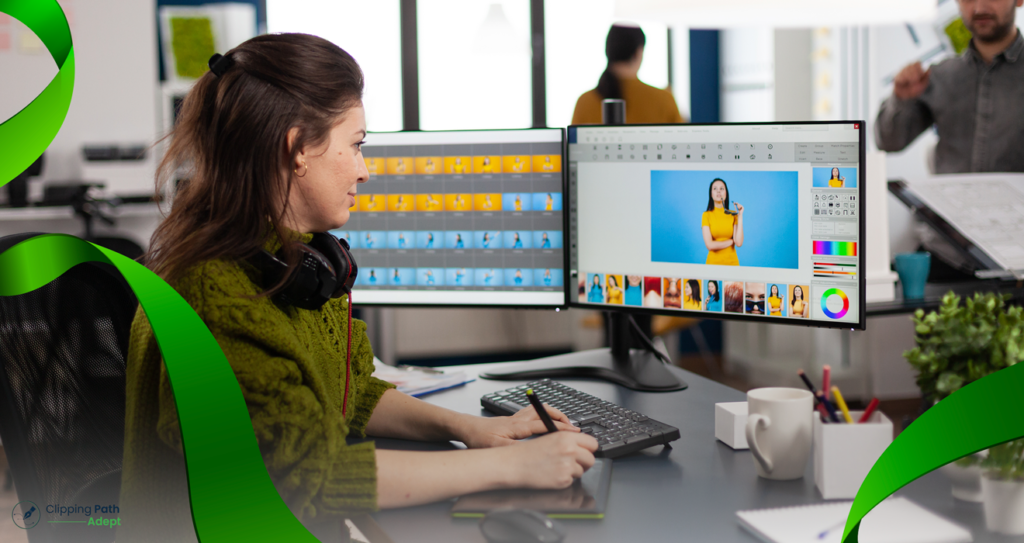
Have you ever wondered how an online store can have a clear product image with a white background? The image editing method is called a clipping path. The clipping technique is a vector outline that is drawn around an object in an image, and this will help to remove the object from the background. The most common software for this job is Adobe Photoshop. Editors use the Pen Tool to trace the edges carefully. After that, they can remove or change the background without touching the main object. This technique is vital for e-commerce. It makes products look clean, sharp, and professional on websites. Clipping Path Adept provides professional photo clipping services in the United States and the United Kingdom. We have over 10 years of experience helping businesses create effective product images. Our professional editors save you time and help you get high-quality images. In this blog, you’ll learn what a clipping path is, how it works, why it’s important for e-commerce, and how professional services can make your product images look their best. What Is Clipping Path? A clipping path is a line drawn around an object in a photo to separate the object from the background. Basically, it helps remove the background. This makes the image look clean and professional. These types of images are great for e-commerce, marketing. In Adobe Photoshop, designers work with the Pen tool to define the shape of an object. Small anchor points are placed to create a smooth structure. Once the path is done, the background elements can be removed, replaced, or modified without affecting the primary element. Professional clipping path services in Photoshop make sure every detail is perfect, from tiny corners to smooth edges. Since the path is made with vectors, designers can control every curve and line. This helps create clear, high-quality results every time. The clipping path is the base of all image cutout services used in photo editing today. Types of Clipping Path Clipping path methods can vary depending on the delicate nature of the image object. Knowing these types will assist you in selecting the right clipping path service. Basic Clipping Path: It is used to make simple shapes with smooth or flat edges. The designer uses the Pen Tool to cut out the object. This clipping path method is best for standard product images, such as boxes, bottles, etc. Compound Clipping Path: This method is applied with an object that has open areas, such as a ring, chair, or watch. It connects with multiple paths to bring each section of the object to a transparent look and a clean look. Complex Clipping Path: This is for tricky objects with fine or rough edges, such as hair, fur, or jewelry. It needs careful tracing to capture every small detail and shape. Multiple Clipping Paths: It is used for the image with is contains many elements that need to be separately edited. Every element has its own path, so editors can adjust any color, shadows, or backgrounds individually. Each type helps make the image background neat and accurate. With the right clipping path, your photos look polished and ready for eCommerce, marketing, or catalogs. Are Clipping Path and Clipping Mask the Same? Most of the time, e-commerce owners or beginner graphic designers are confused about the clipping path and the clipping mask. They sound similar, but they work differently in Photoshop.A clipping path is a vector-based gradient used for segmentation objects from the background. Great for e-commerce images, advertising, and product photography. This helps to make fine, clean edges around the image object. A clipping mask is different. The method works in pixels without paths. Instead of clipping, it hides or reveals the parts of a layer. It is typically used to create innovative designs such as text, color correction, or image blending. Here’s a quick comparison: Feature Clipping Path Clipping Mask Basis Vector path Pixel-based layer mask Purpose Cut out objects or remove backgrounds Control which parts of a layer are visible Tools Pen Tool, Anchor Points Layer Mask, Brush Tool Use Case eCommerce product photos Graphic design and photo effects Designers often use both together. The clipping path gives clean cutouts, while the clipping mask allows soft edits and creative control. Clipping Path in Photoshop A clipping path in Photoshop is not a complex yet powerful editing technique. This helps to cut out the object from the background with transparent, clean edges. Designers use it to make product photos, ads, and marketing images look neat and professional. When they draw a vector line on the subject, they can remove, change, or re-customize the background without affecting the main object. With a clipping path in Photoshop creates clean, clear, and smooth edges that enhance images. This is an essential method for photography, e-commerce, or photo editing. Types of Tools Used for Clipping Path Tools are very important to create a professional clipping path in Photoshop. The most common tool is the Pen Tool. It helps you draw smooth, curved lines on subjects. By creating anchor points, you can create a neat path and split objects from the background. This tool is best for creating complex design items like jewelry, hair, or small details. Here’s a look at the main tools used for clipping paths: Pen Tool (Photoshop Pen Tool): The Pen Tool gives the most accurate results. You can place and move anchor points to make clean outlines around objects. It’s perfect for detailed work and is the top choice for professional editors. Lasso Tool: The Lasso tool allows you to draw around an object with your mouse. It’s fast enough for simple designs, but not great for delicate or intricate shapes. Great for a quick and easy pick, the better you’ll be able to fix it later. Polygonal Lasso Tool: This tool makes selections using straight lines between each click. It works well for shapes with sharp or straight edges, like boxes or signs. It’s not ideal for curves, though. Magnetic Lasso